
Using the PDF Designer
This guide demonstrates how to use a PDF editor to assist in automating on Knackly. Follow the steps below or watch the accompanying video here:
There are many forms you may need a client to fill out. Knackly can integrate .pdf forms into an app intake—which means you can present a client with the interview instead of a document, and when they complete it, Knackly automatically fills out the form.
To begin, you will need a PDF editor. Foxit PhantomPDF is an editor that works best with Knackly. The PDF editor will set the different fields that need to be filled out in the document.
To verify the document doesn’t have errors, first open the document in Foxit. Select the Form tab, then Form Data and Reset the Form. When the popup opens, select Yes.
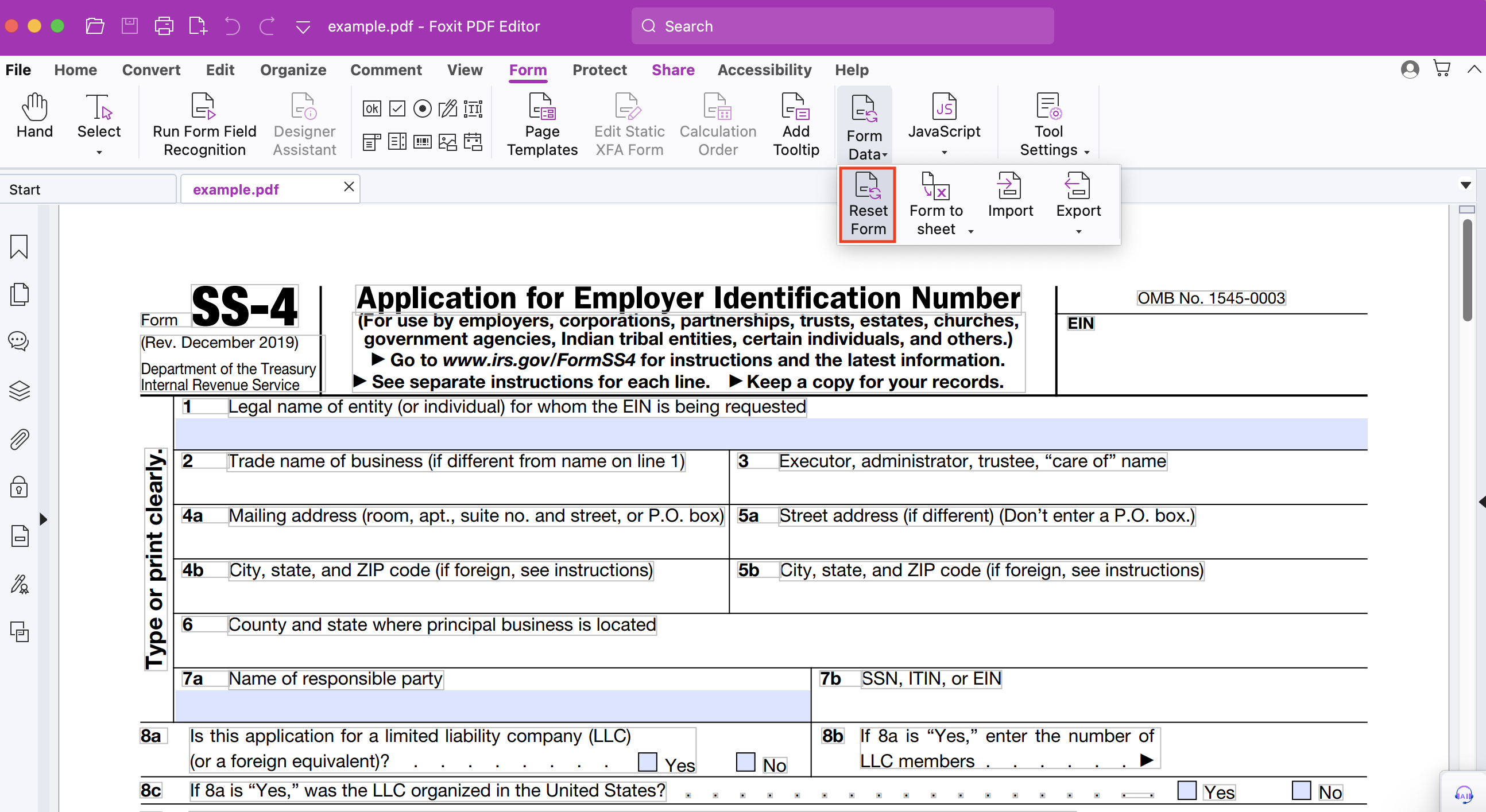
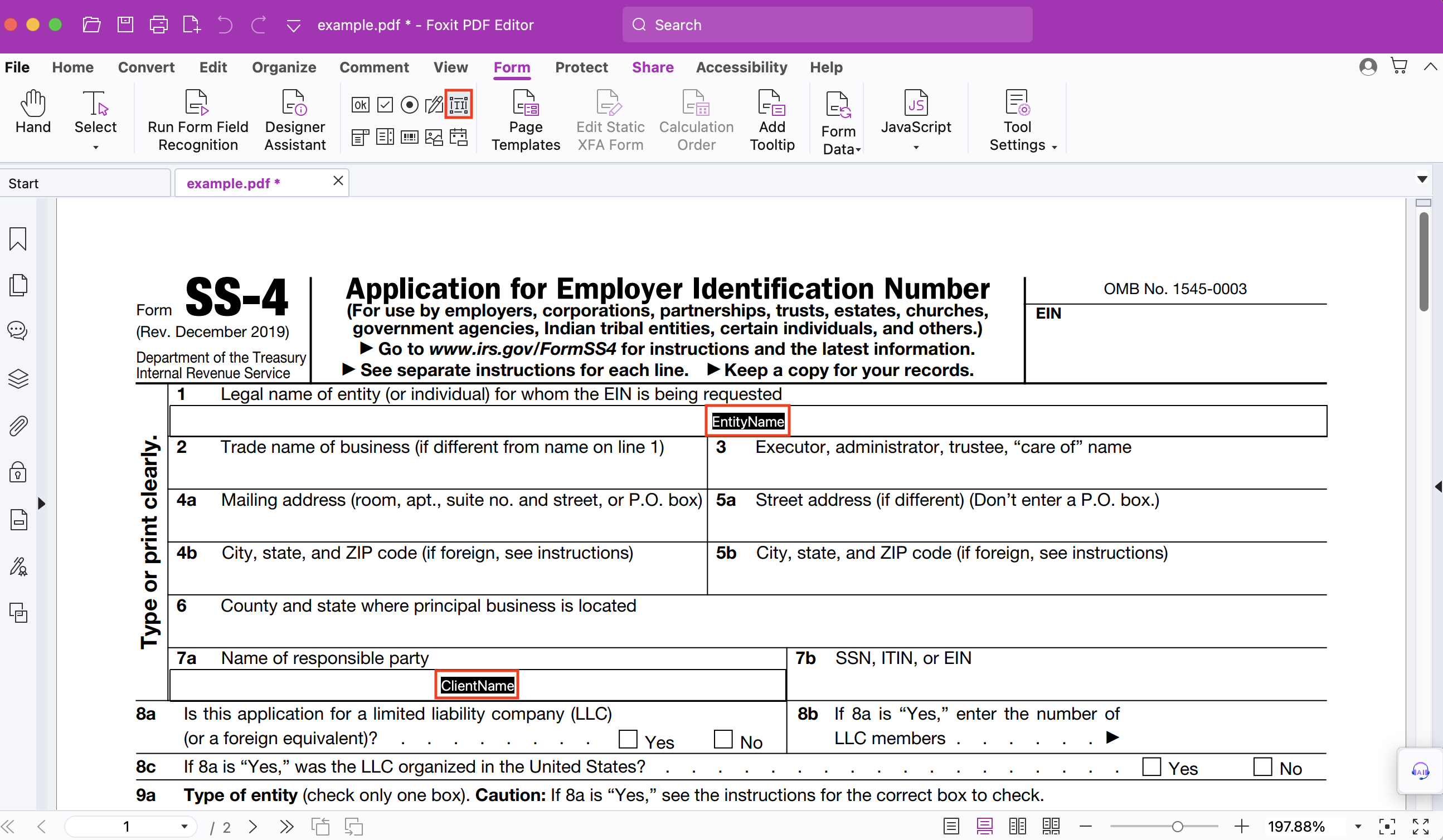
Now you will see any fields—or add them. Note that if you do not automatically see a text field, select the text box icon.
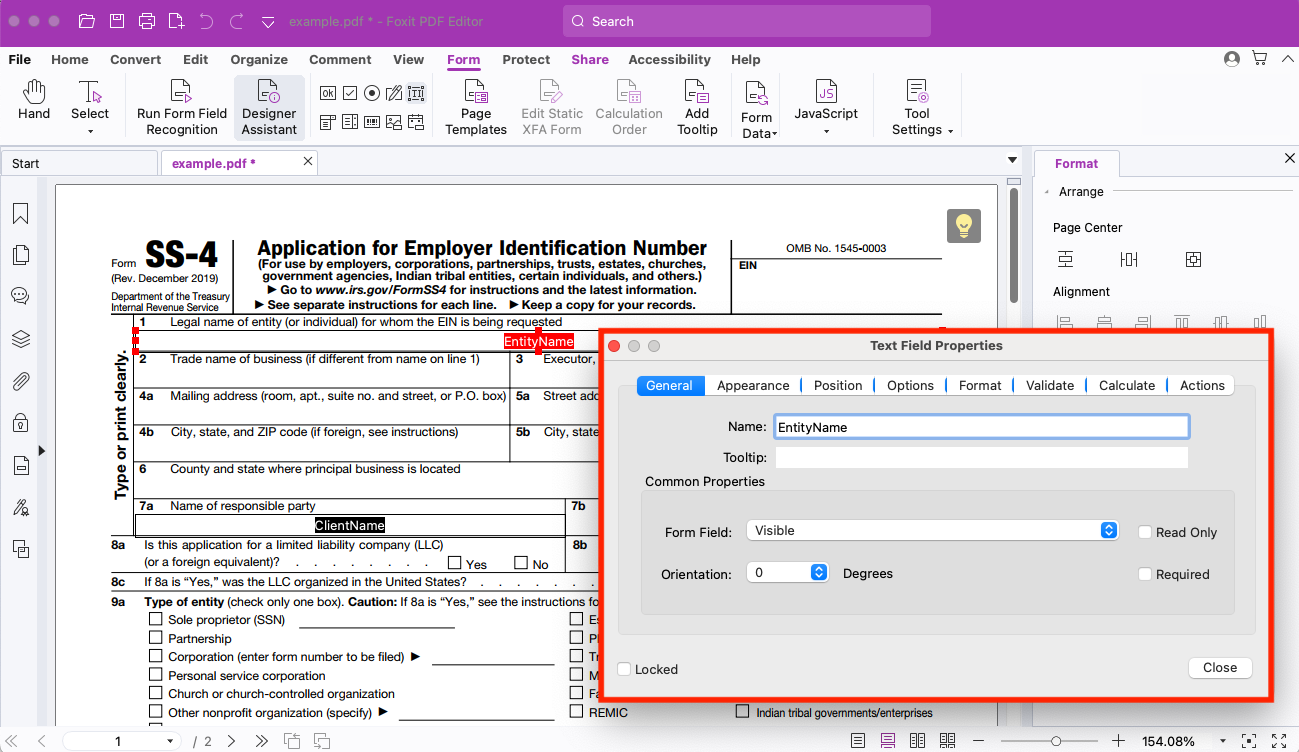
To edit any text fields, update their font styles and colors, double-click on a text field to view the Text Field Properties pop-up.
Select the text box icon to add any additional text fields you may need.
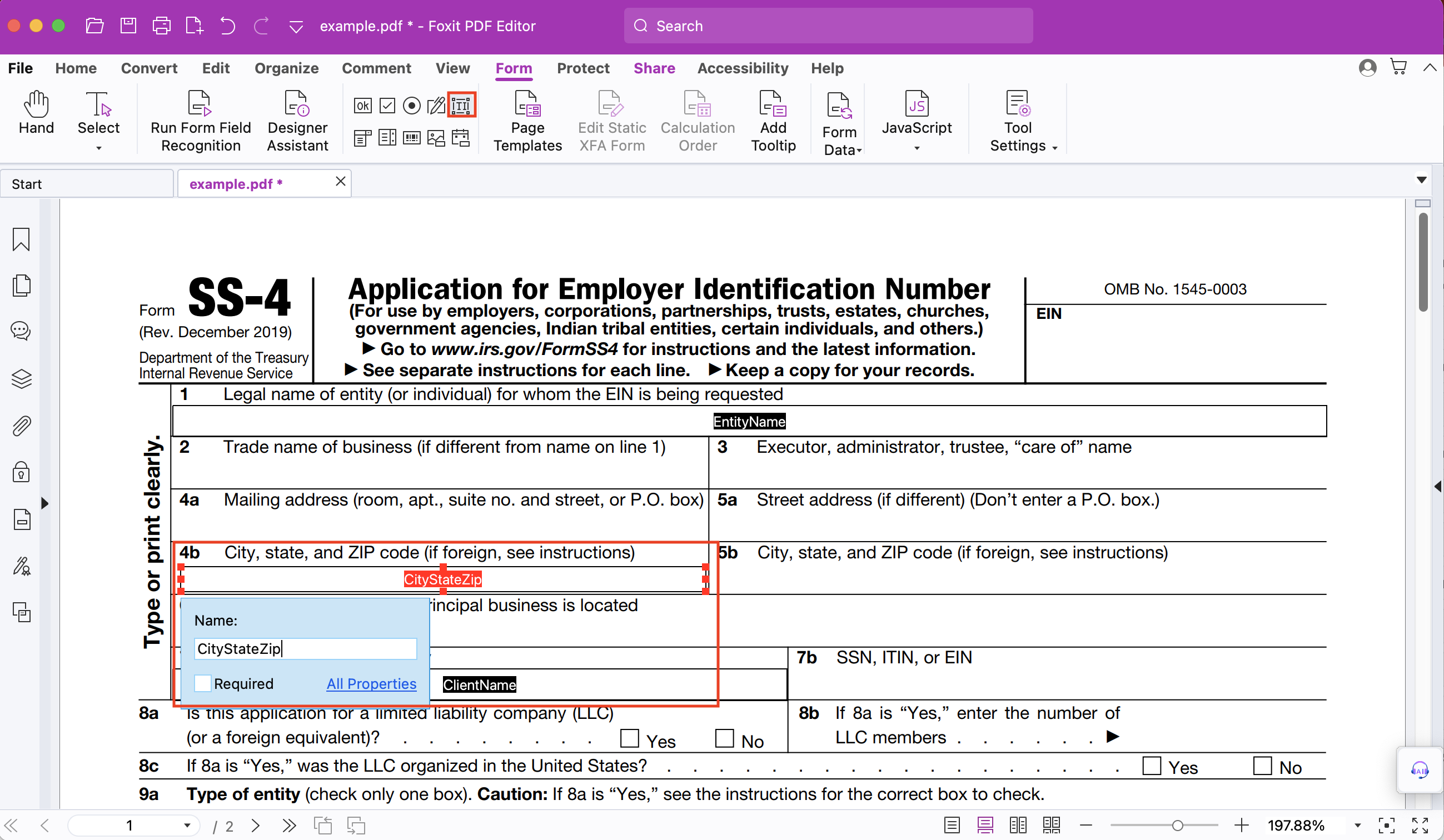
You can select any icons in the icon field to add any additional fields you need. For example, checkboxes.
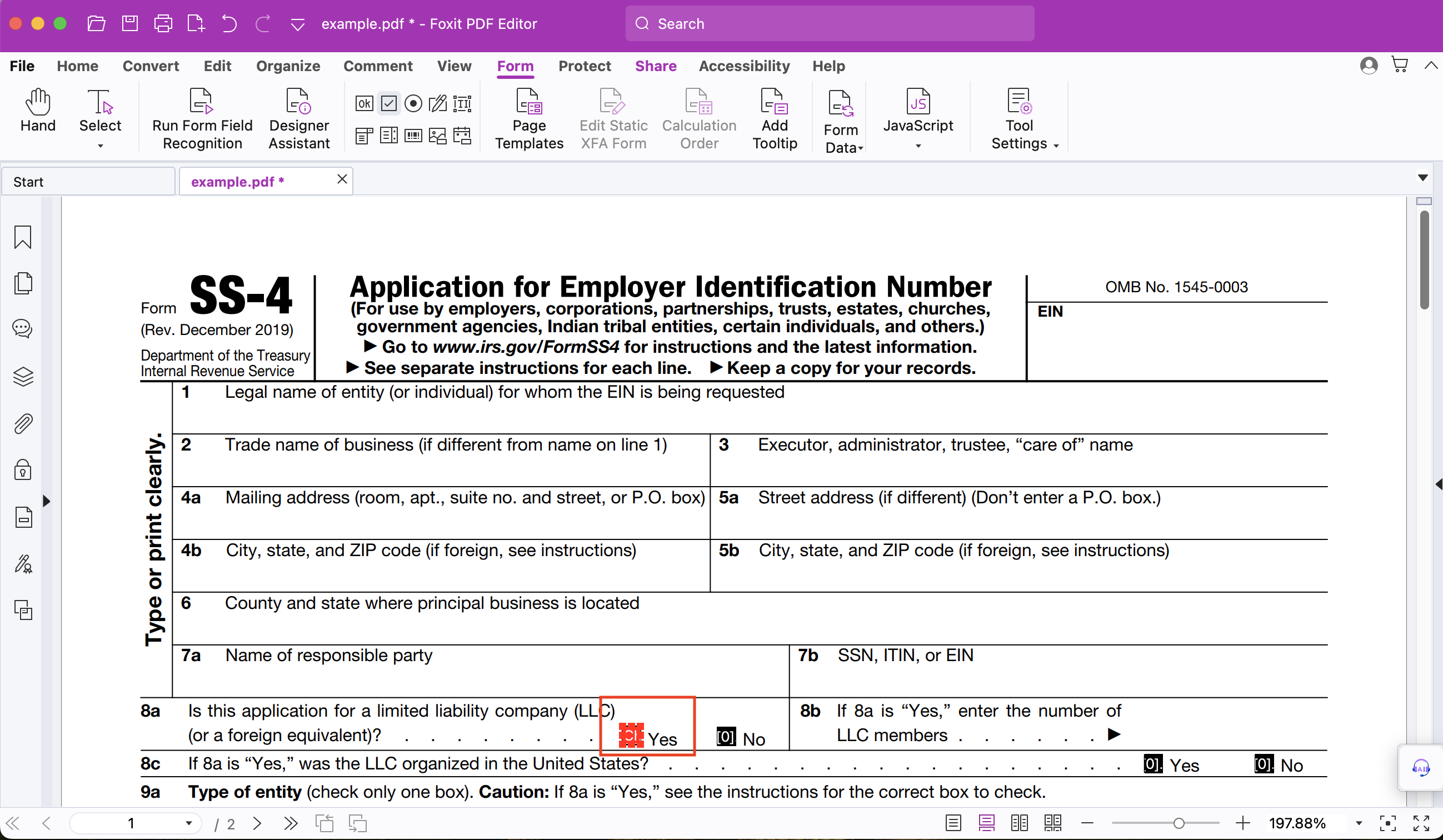
After finishing any updates, select Save. Next, navigate to the online workspace. Add the updated PDF as a new template. Select pdf form as the type.

In the template settings, select the Expression is fillable. Then Upload the PDF.

Add any variables, text templates, or formulas you may need into the right-hand text box. Note that you can copy and paste the names of variables into the text box, however, you will need to erase the brackets.
Checkboxes need additional formatting. In the example here, we created a simple check box, but you may create check boxes that are a little more complex. For example, in our example we created a single check box for the yes box—however creating a check box for both yes and no could benefit you.
The second column dictates what the document needs for buttons or toggles. In this example, our button needs 1 and Off. To tell Knackly how to turn this button on or off, enter in:
True/FalseVariableName ? “1” : “Off”
If you were to have a more complex check box as mentioned above, then Knackly is looking for 0 and 1:
True/FalseVariableName ? “1” : “0”
In some cases, a button may look for No and Yes:
True/FalseVariableName ? “Yes” : “No”
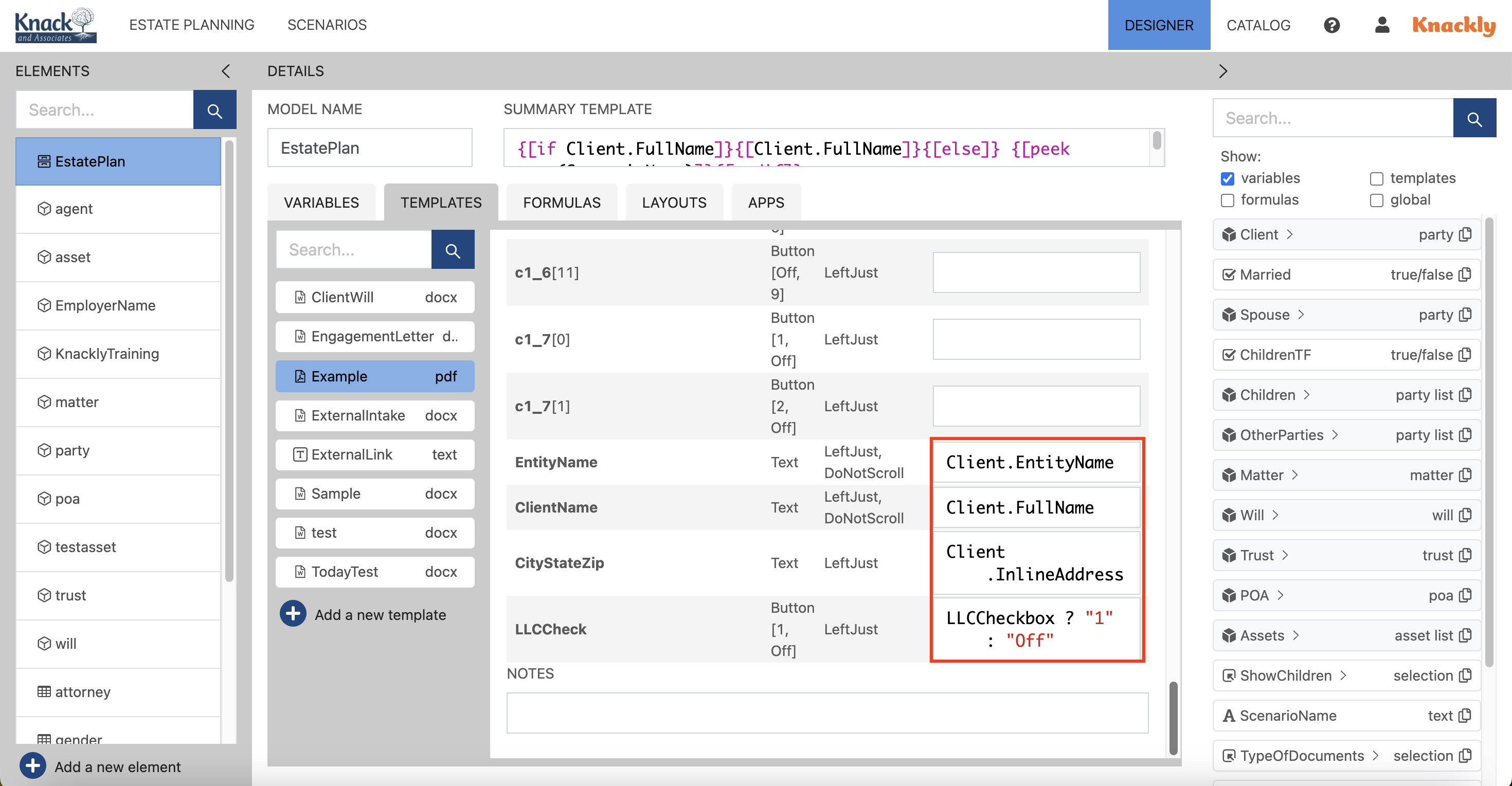
Next, add the newly created template as an app.

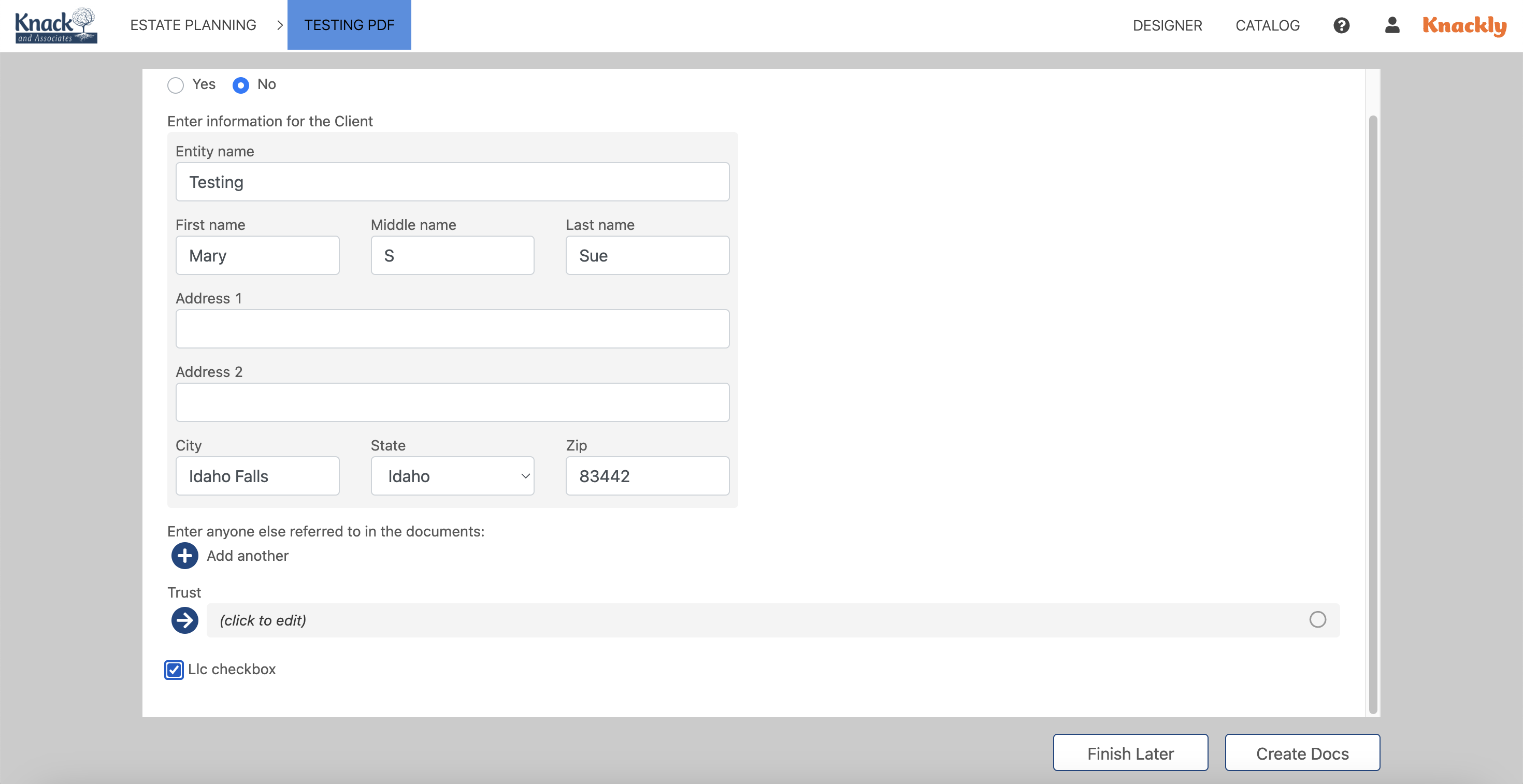
Run and complete the new app.
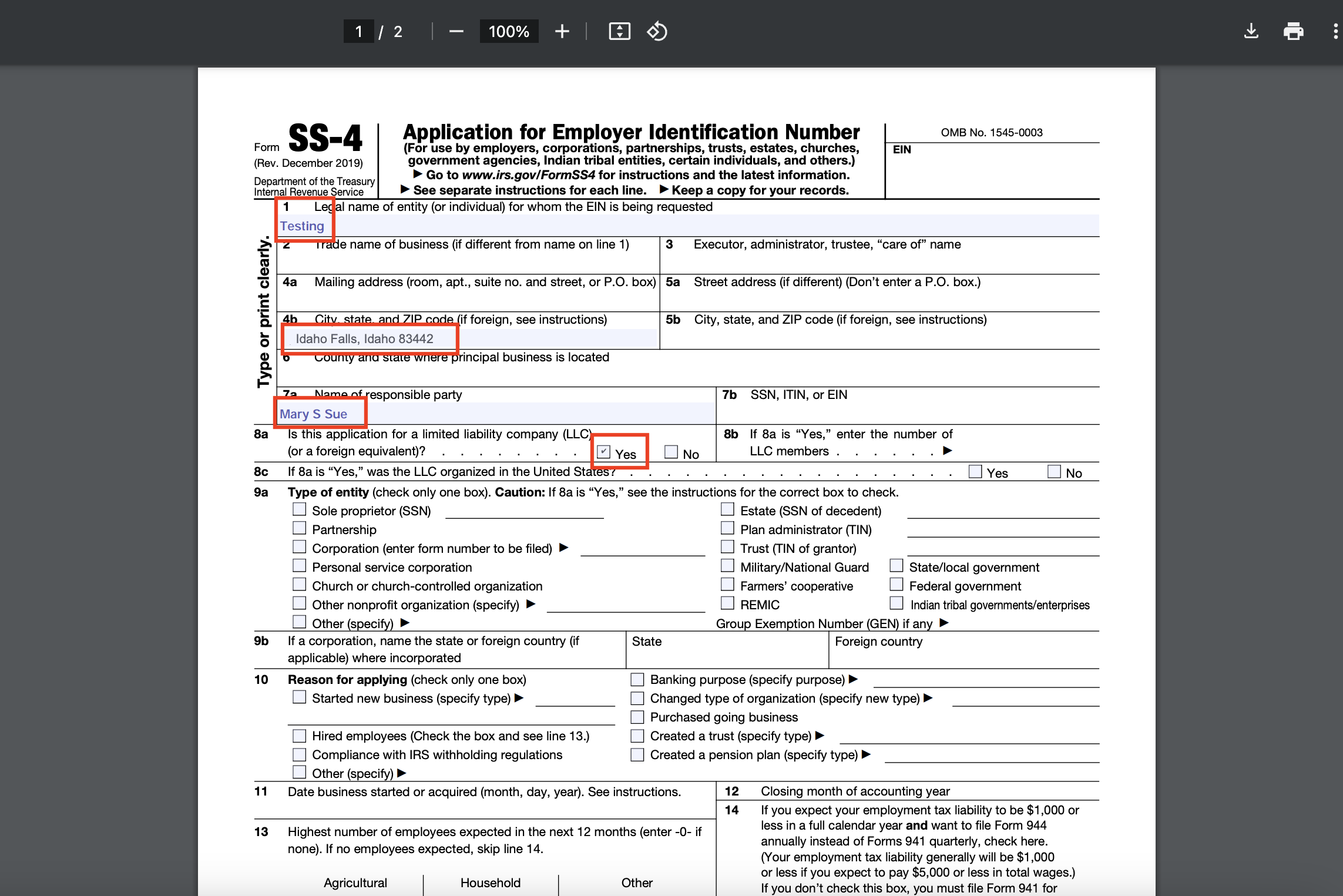
After downloading the completed document, double-check it for the information you expect to see.
Please let us know if you have any comments or suggestions on how to improve this guide.