
Using the Go To Field Feature to Find Errors
The Knackly Go To Field feature is designed to assist you to navigate within your template quickly. When you save a template and there is an error, it will not update to your Knackly Workspace. Instead, you will receive two notifications: a red banner that says "The document has errors!" and a pop-up labeled "List errors in document" which explains what and where the error is.

The List errors in document popup will typically tell you what variable has an error and the field that error is located in.
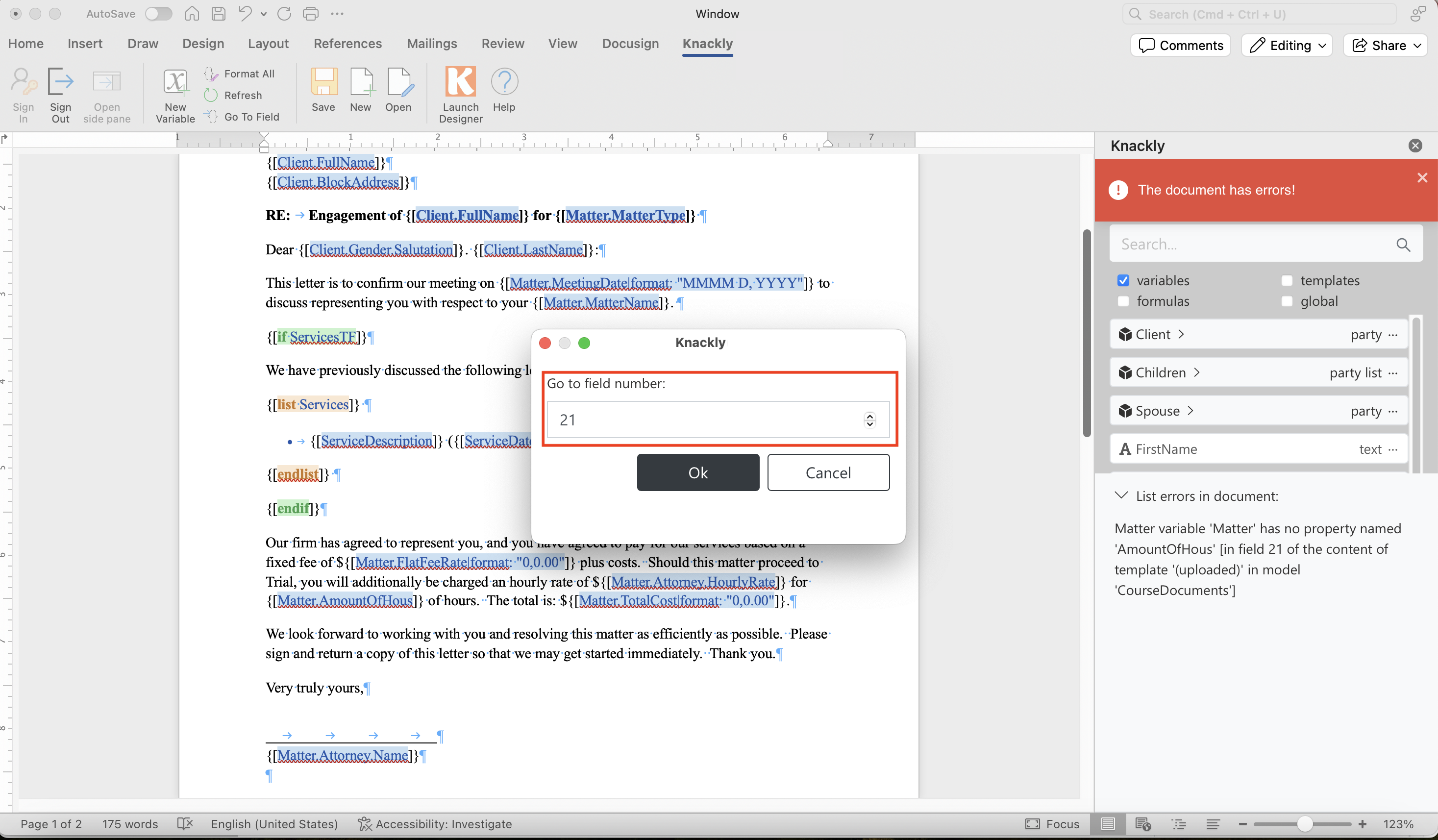
The error message from the screenshot above reads:
Matter variable 'Matter' has no property named 'AmountOfHous' [in field 21 of the content of template '(uploaded)' in model 'CourseDocuments']
In a template containing many, there can be hundreds of fields. This example is from a template that is one page.
Select the Go To Field option within the Knackly banner. A pop-up appears where you can type in the field number from that error message. Select Ok.
The Go To Field feature will automatically jump to the location of that field. Additionally, it will highlight the field with the default highlight that typically comes from dragging your mouse across to select text.
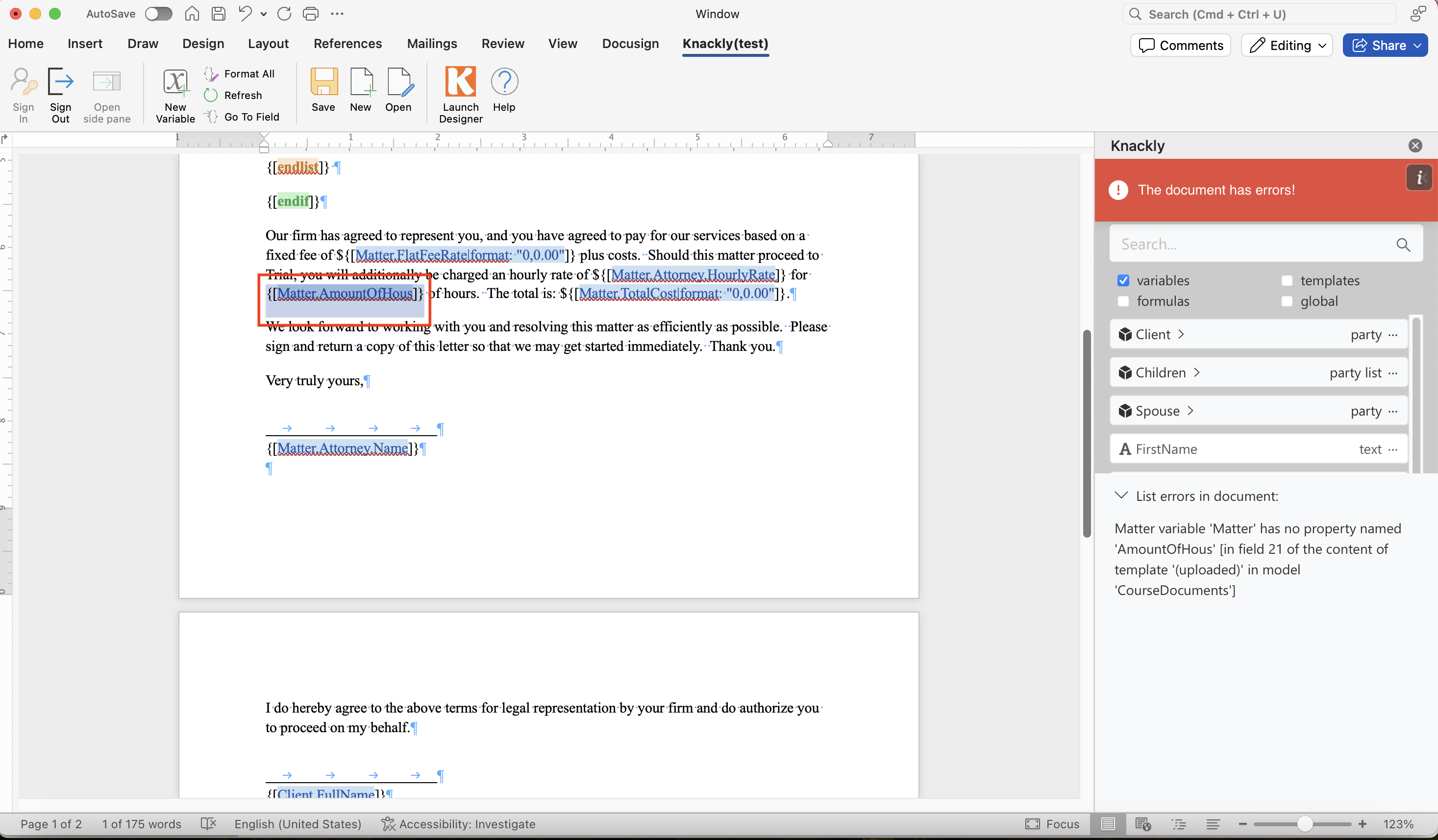
Now you know the location of the error. In the example above, the variable name is incorrect. This is a simple fix by adjusting the variable name.
Your errors may be more complex. If you are struggling with errors within your template after reviewing the List errors in document message and using the Go To Field feature, please let us know.