
Creating and Editing Question Prompts
This guide covers how to add and edit question prompts in the Knackly Word Designer and briefly touches on how to edit this text in the online workspace.
We are able to move question prompts around in the interview as well. To learn how to do this, review Working With Conditions in Layouts.
We can add additional information to question prompts by updating the question help field as well. To learn how to do this, review Creating and Editing Question Help.
You can watch the accompanying video here:
The question prompt is what a user will see in the interview. By default, Knackly identifies uppercase letters and will add a space between variables to create a question prompt. For example, the variable MatterType will automatically use the default prompt: Matter type.
This default feature is why it is important to create variables with the first letter of a word in uppercase.
The default feature is convenient, however, it may be more powerful to change the question prompt from Matter type to Enter the current matter type.
Follow these steps to create a new variable and add the question prompt in the Word designer:
-
Select Add a new variable. Enter the variable name. You will see the default question prompt populate.
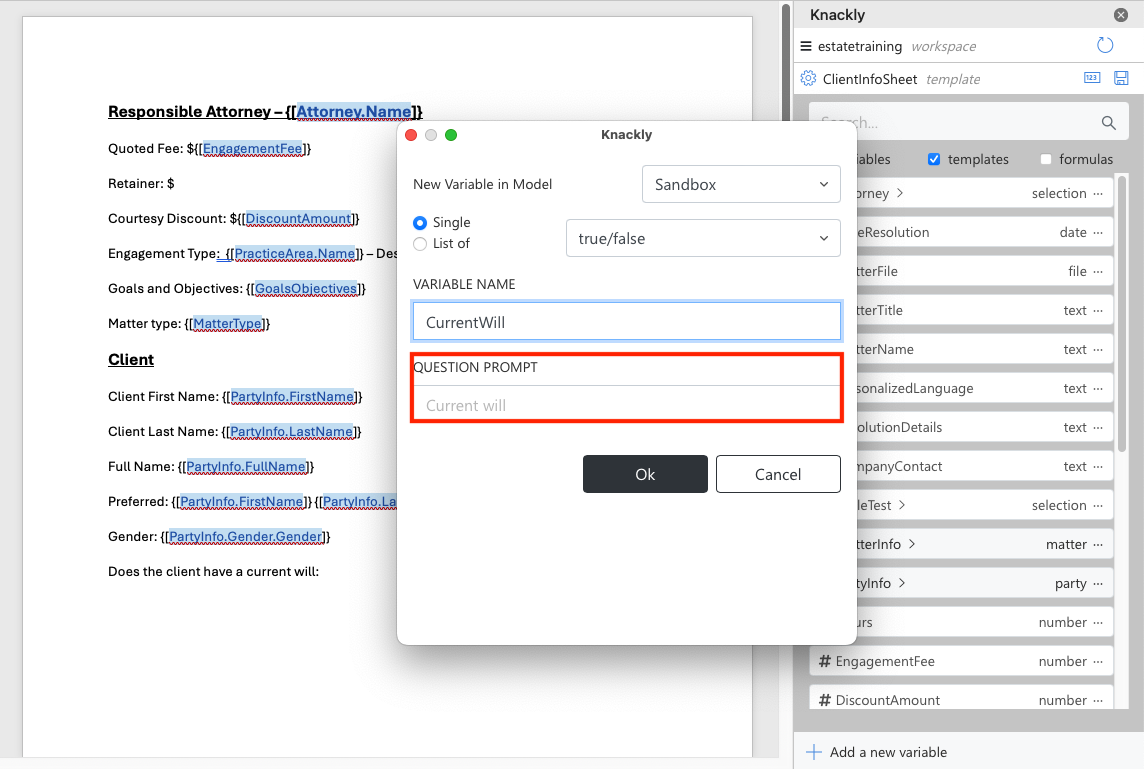
-
Select Ok or update the question prompt.
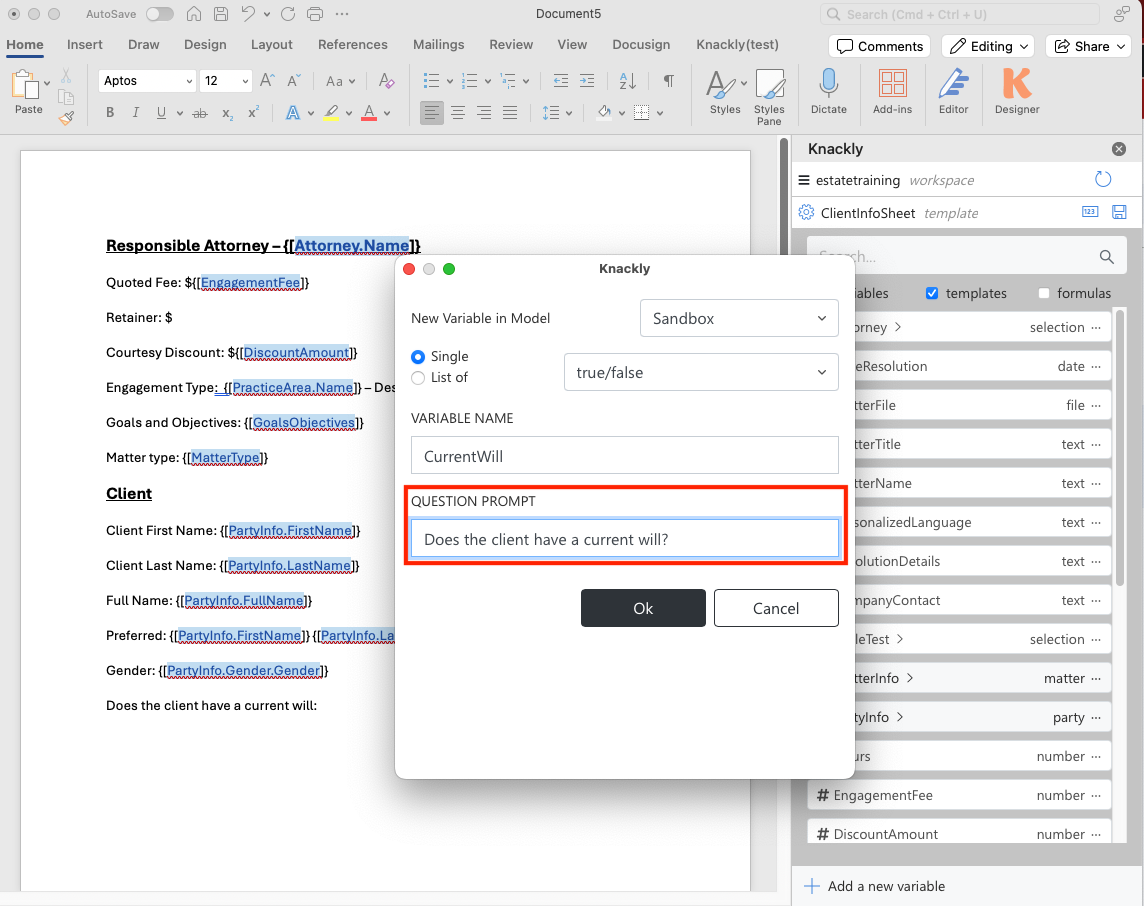
- Select Ok and save the template.
To edit a current variable question prompt, follow these steps:
-
Locate the variable you intend to edit. Select Edit variable in the dropdown menu.
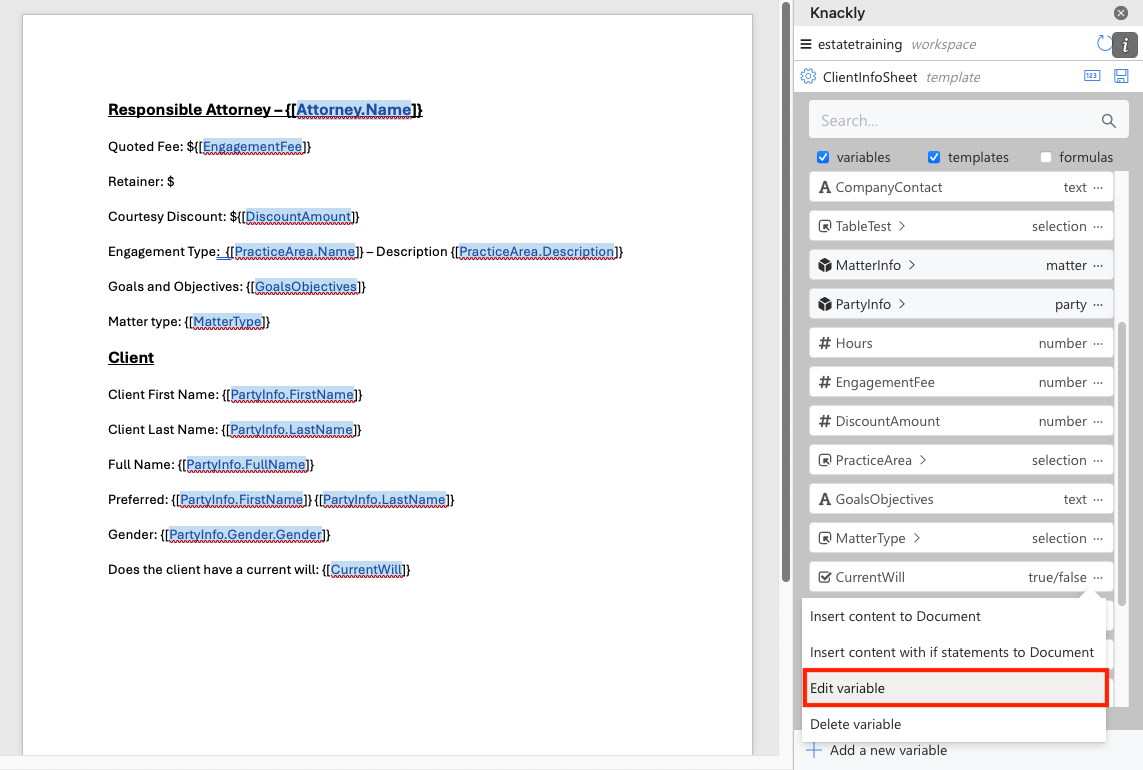
-
A pop-up will appear to edit the question prompt.
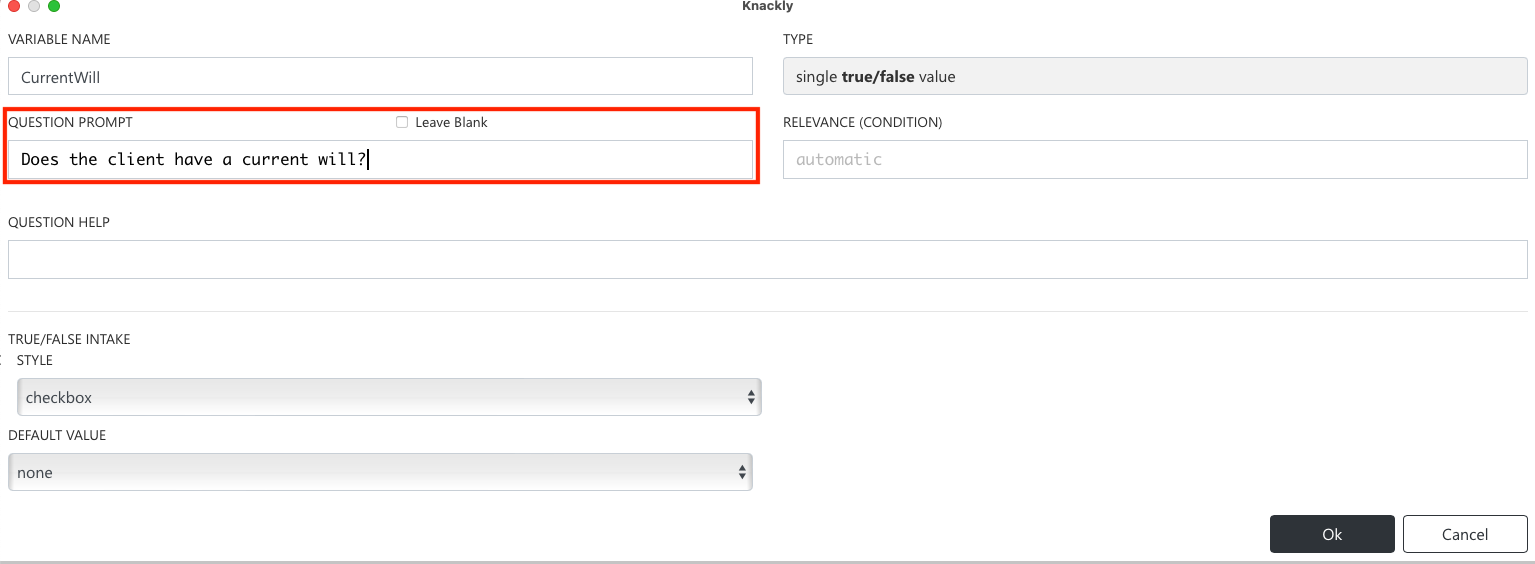
-
Select Ok and save. Navigate to the online interview to view the changes.
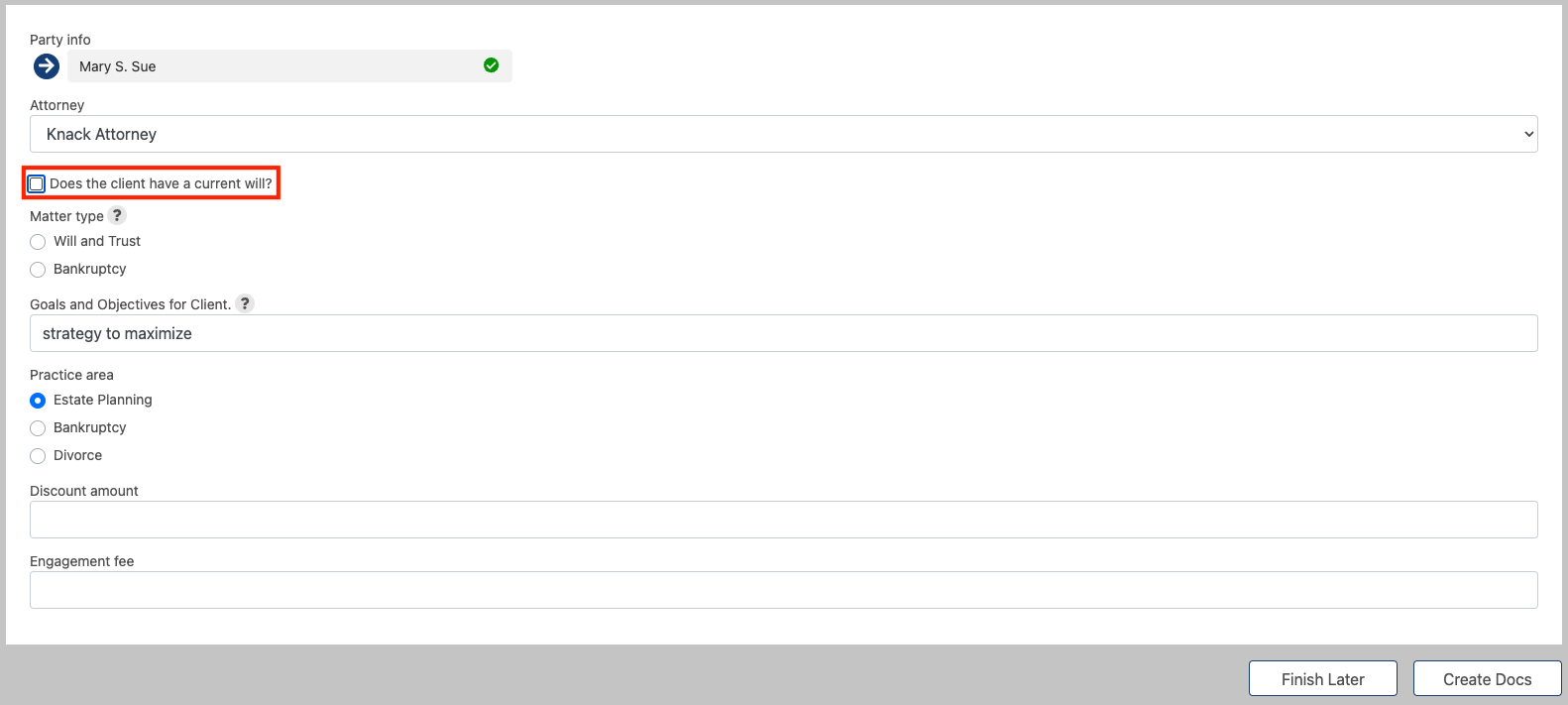
Editing Question Prompts in the Knackly Online Designer
To create or edit a question prompt in the online workspace, navigate to the variable you wish to change in the online designer. Here you can create or edit the question prompt.

You can continue to customize the question prompt in the online workspace. For example, instead of asking if the client has a will, we can insert the client’s first name variable and ask instead if Mary has a will. To do this, either drag and drop or copy and paste the variable for FirstName from the right-hand variables list.

Select Save and navigate to the interview to view the changes you have made.

Please let us know if you have any comments or suggestions on how to improve this guide.