
Creating and Editing Question Help
This guide covers how to add and edit question help in the Knackly Word Designer and briefly touches on how to edit this text in the online workspace.
We are able to move question prompts around in the interview as well. To learn how to do this, review Working With Conditions in Layouts.
To learn how to update the question prompt, review Creating and Edition Question Prompts.
You can watch the accompanying video here:
Adding help text can greatly benefit your users in the interview. The question prompt itself may not be enough to cover details about the question or clarify the meaning of the question. Additionally, question help organizes the interview leaving bulkier explanations out of the main interview window by providing a small help icon instead.
To add question help text, follow these steps:
-
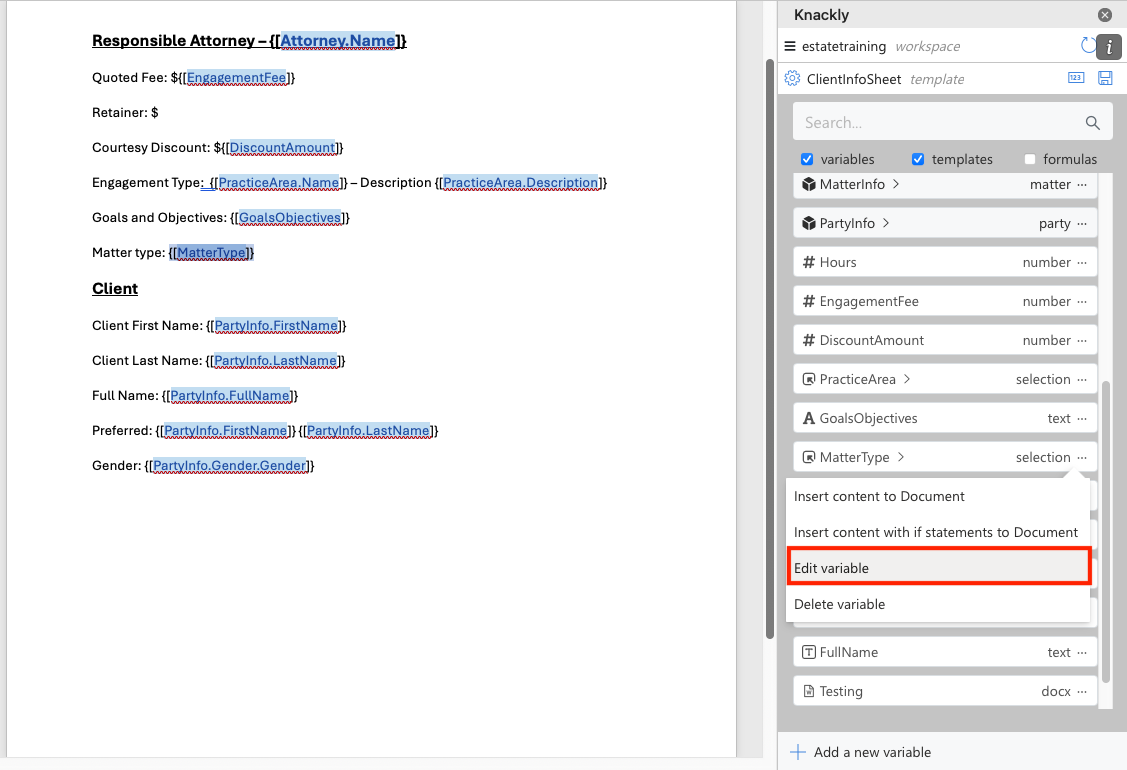
Locate the variable you wish to add question help to. In our example, it is MatterType. Select Edit variable.
-
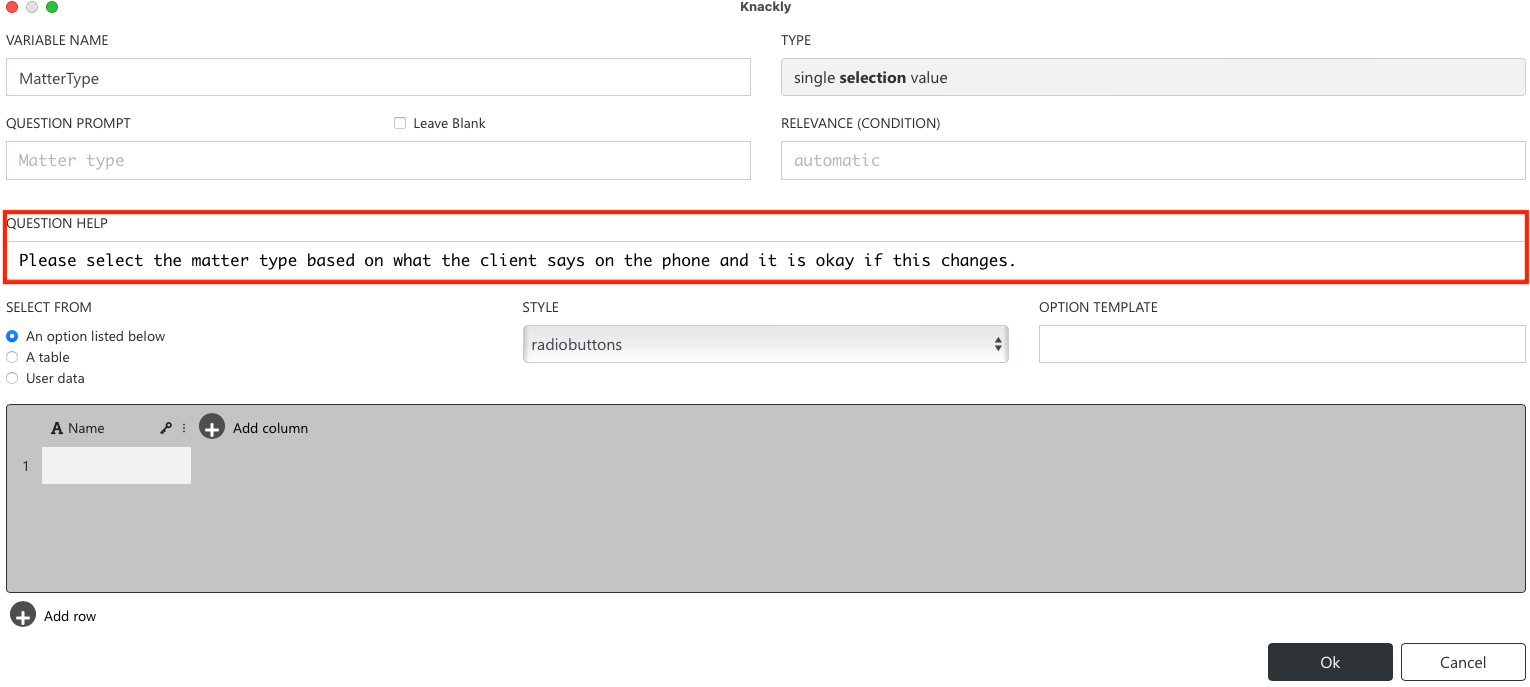
Insert the question help text.
-
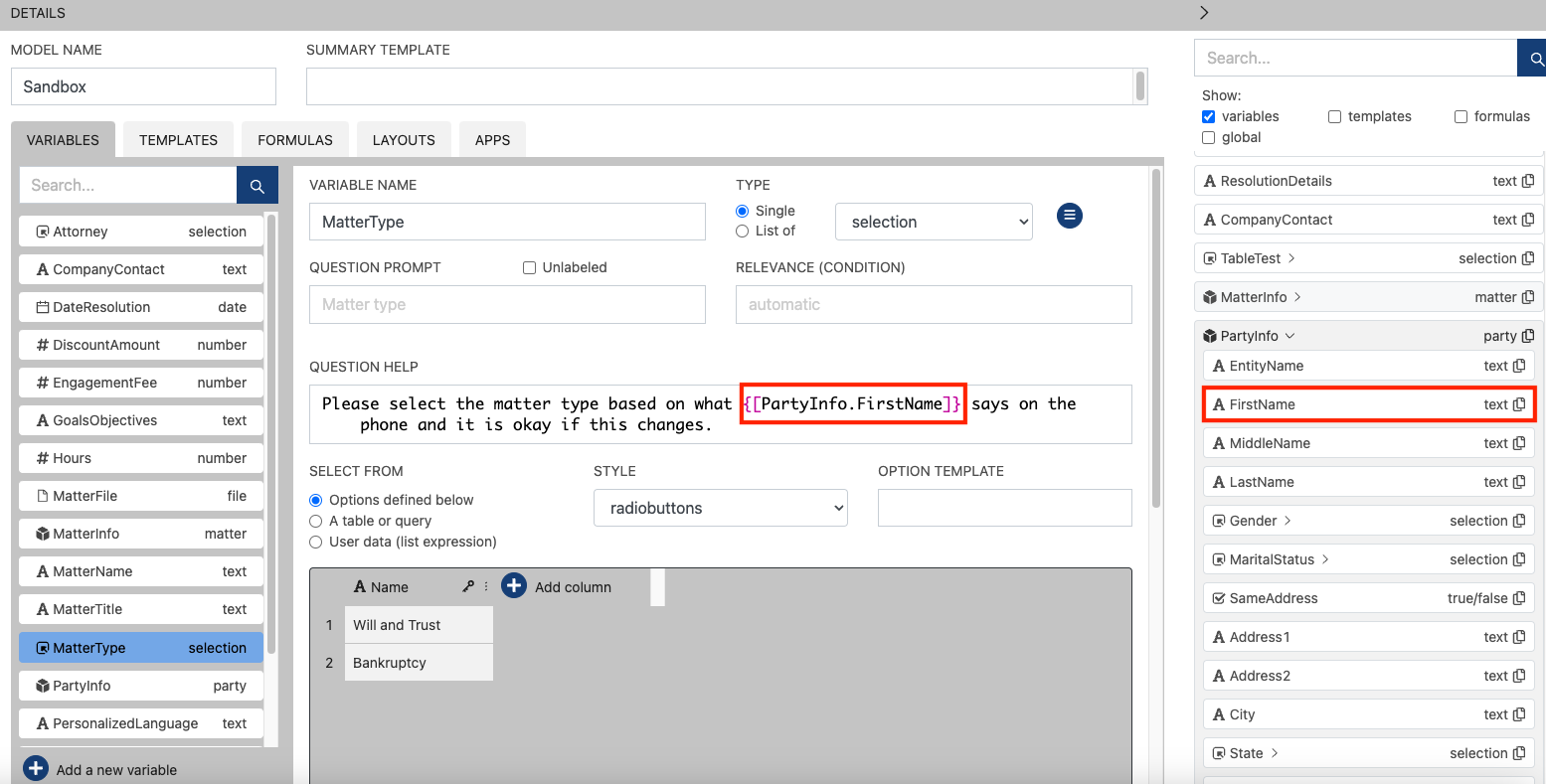
Select Save. From here, you can open the interview and view the question with the question help icon or you can navigate to the online workspace and make any edits. In our example, we are going to personalize the question help by adding our client's first name to the question help prompt.
To do this, locate the variable you need in the right-hand variables list. You can drag and drop the variable or copy and paste the information into the question help prompt.
-
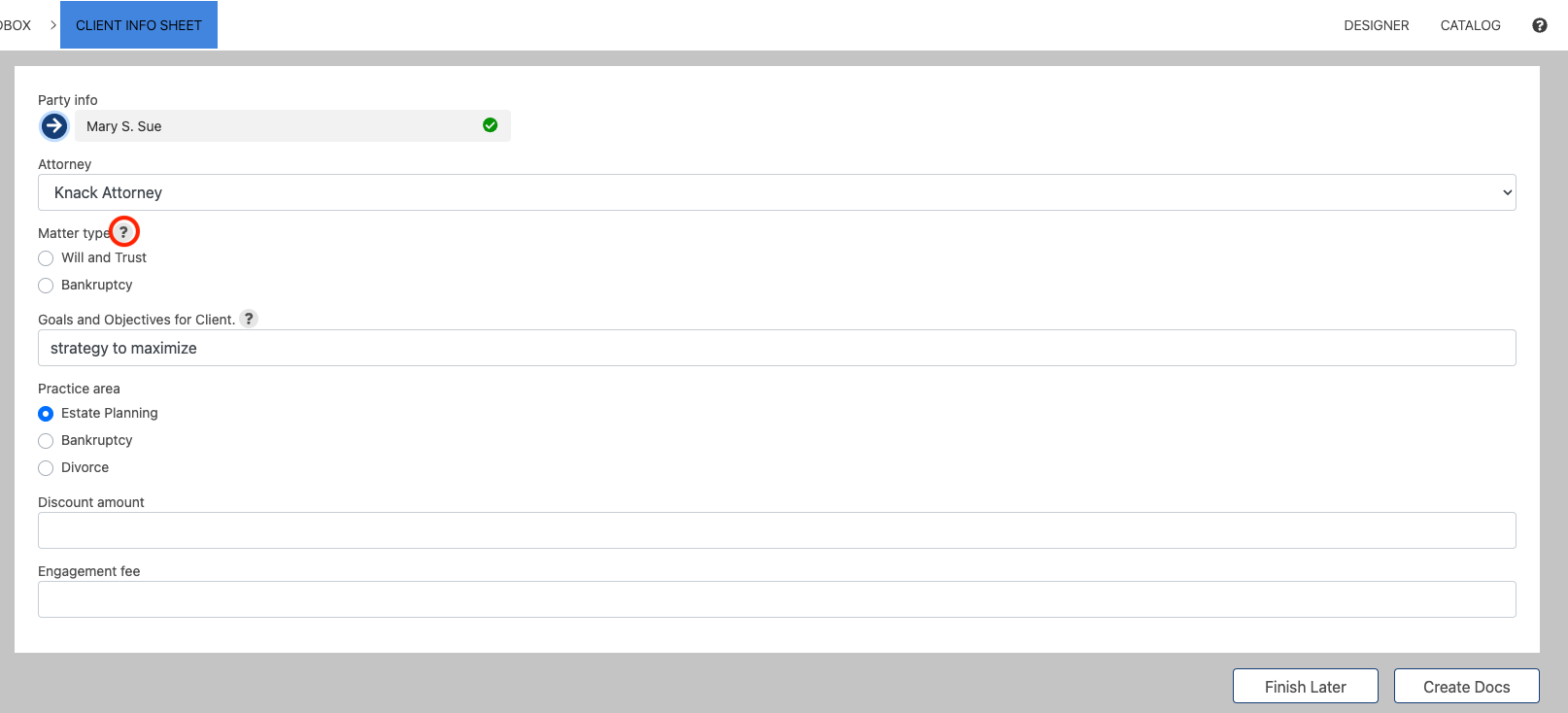
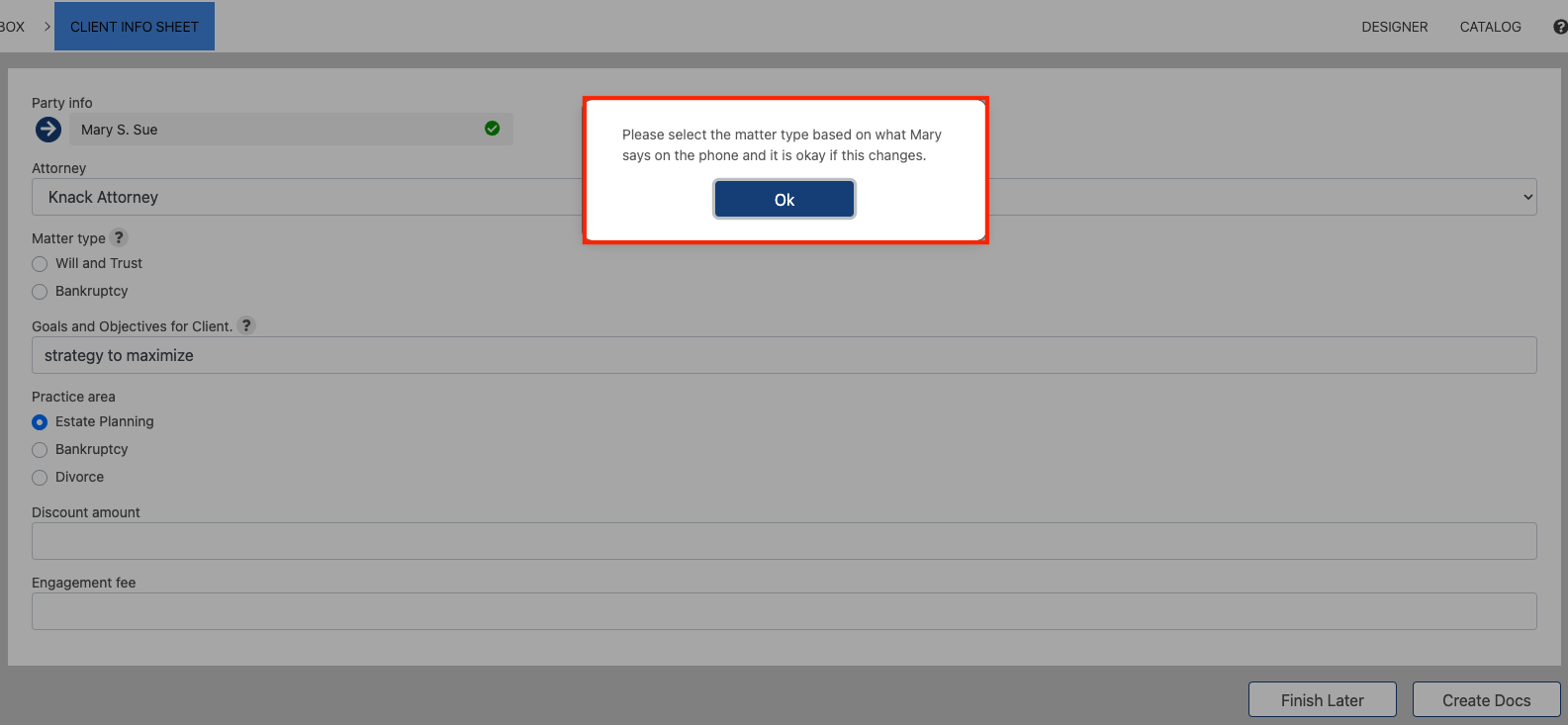
Select Save and navigate to the interview. You can now view the question help icon.
-
Select the icon and the information you entered in the question help prompt will appear in a separate pop-up.
Please let us know if you have any comments or suggestions on how to improve this guide.